
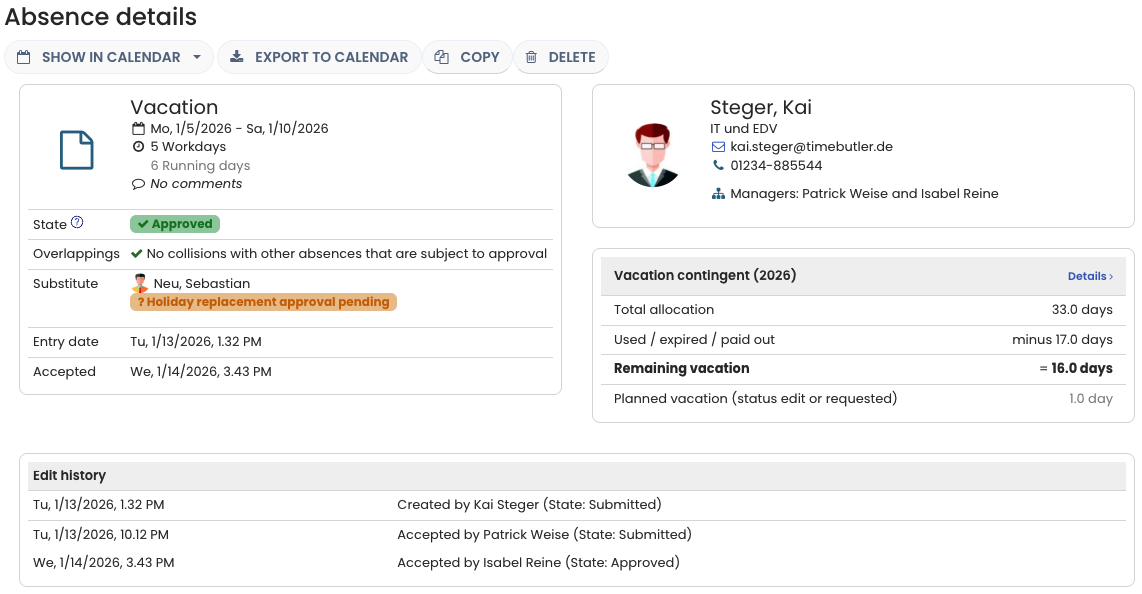
The detail view of a vacation request or absence entry provides a complete overview of all information related to the entry, including:
- The time period of the absence, as well as the number of working days and calendar days
- The status of the request (for example, requested, approved, etc.)
- The assigned substitute and the status of the substitute’s confirmation
- Any overlaps with absences of colleagues
- The edit and change history of the entry
- For vacation requests: a short overview of the vacation balance
- and more information.
Accessing the Detail View
The detail view of a vacation request or absence entry can be opened either via the calendar view or the list view, depending on the user role.
Access via Calendar View
Employee users
- Log in to your Timebutler user account.
- Click “Absences > Calendar View” in the left-hand navigation.
- Click the desired absence entry in the calendar to open the detail view.
Supervisors and admins
- Log in to your Timebutler user account.
- Click “Employees > Absences > Calendar View” in the top-left navigation.
- Click the desired absence entry in the calendar to open the detail view.
Access via List View
Employee users
- Log in to your Timebutler user account.
- Click “Absences > List View” in the left-hand navigation.
- Click the blue magnifying glass icon next to the desired entry to open the detail view and review the change history.
Supervisors and admins
- Log in to your Timebutler user account.
- Click “Employees > Absences > List View” in the top-left navigation.
- Click the blue magnifying glass icon next to the desired entry to open the detail view.
Screenshot: Detailed view of an absence entry
Special Case: Deleted Entries
Deleted absence and vacation entries are not displayed in either the calendar view or the list view. Once an entry has been deleted, it is therefore no longer visible in the regular views used for managing absences.
However, Timebutler still keeps a record of deleted vacation and absence entries. The system logs:
- Which entry was deleted
- Who deleted the entry
- The date and time at which the entry was deleted
This ensures that deletions remain traceable, even though the entries themselves are no longer shown in the calendar or list views.
To learn how to access and review deleted entries, read here how to view deleted entries.