
If you open the working time account in the overtime balance as of a specific date view and see a very large negative number in the Overtime balance on dd.mm.yyyy column for one or more employees, the causes can be as follows:
Time tracking start date not set
An admin can set the time tracking start date. If it is missing, a high negative overtime balance can result. For example, if you start time tracking on May 1 but have not set a start date, Timebutler expects that working times were recorded for all days from January through April. Because no one entered working times before May 1, many negative hours result.
To check or set the time tracking start date, log in to Timebutler as an admin and click Settings > More… at the bottom left, then Time tracking on the right. Change the Start of time tracking option and click the blue Save button at the bottom of the page. Timebutler recalculates the working time account immediately.
Start date for a new employee not set correctly
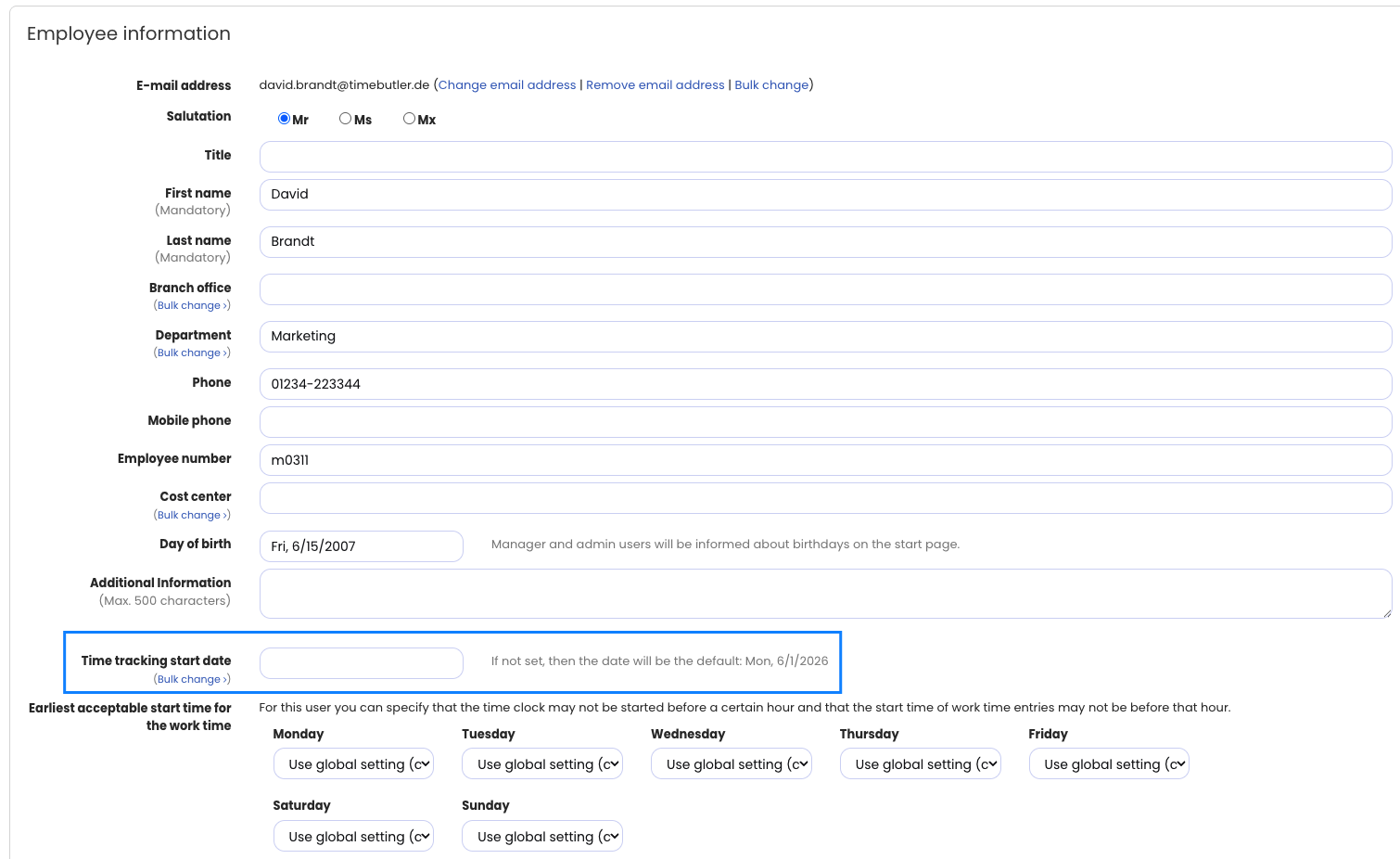
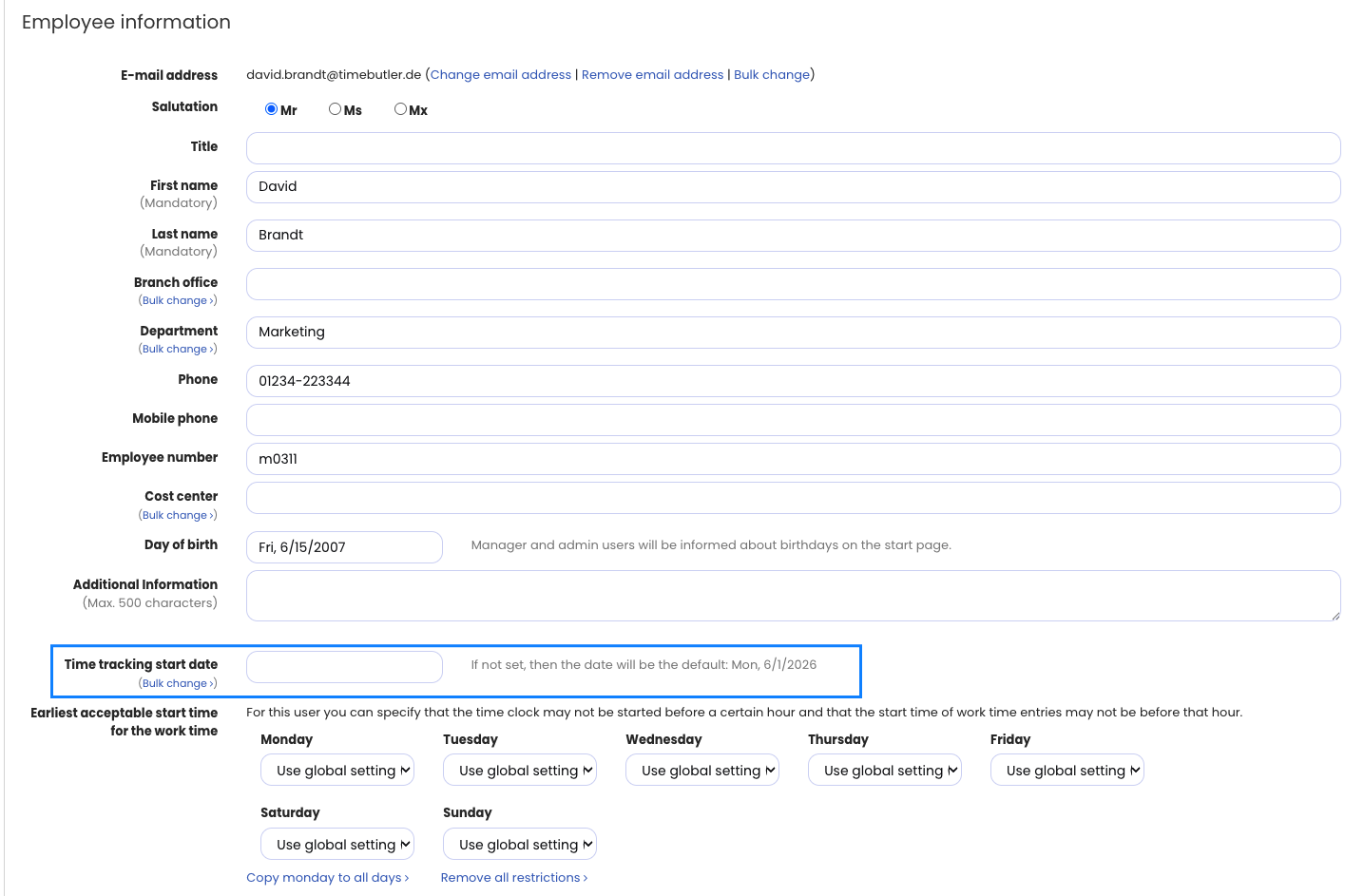
When someone new joins the company and you create a user account, you can set the time tracking start date for this employee individually, in addition to the hire date. If the start date is not specified, the same thing happens as described in the section above.
To check or set the time tracking start date for the employee, log in to Timebutler as an admin and click Employees > Employees > Overview at the top left, then click the green pencil icon (= Edit) for the desired employee. Change the Start of time tracking option and click the blue Save button at the bottom of the page. Timebutler recalculates the working time account for the employee immediately.
Absences such as vacation, sick leave, parental leave, etc. not entered
If someone does not enter a longer absence (vacation, sick leave, parental leave, etc.), the working time account does not correctly account for the target working time. For example, someone who does not enter 8 weeks of parental leave records no working times during those 8 weeks and then has overtime deducted for 8 weeks.
You can check this by opening the calendar view of time entries. If calendar days are marked dark red over several days, many negative hours have accrued there — a vacation request, a sick report, or another absence was probably forgotten. Add the vacation or the absence, and the working time account is recalculated immediately.
Sometimes the vacation request or sick report was entered but not requested, not yet approved, or is in the pending status. In that case, the entry must be requested and approved, or set to the status Processing completed, so that it is included in the working time account.
Time entries missing
If someone does not record their time entries, Timebutler subtracts the target working time from the overtime balance for each missing day. For time tracking, it is therefore necessary to enter all working times.
You can check this by opening the calendar view of time entries. If calendar days are marked dark red over several days, many negative hours have accrued there — time entries may have been forgotten for those days. Click one of the days to see whether and which working times are recorded. The employee can simply add the times afterwards, and Timebutler recalculates the working time account automatically.
Incorrect working time balance at the start of time tracking
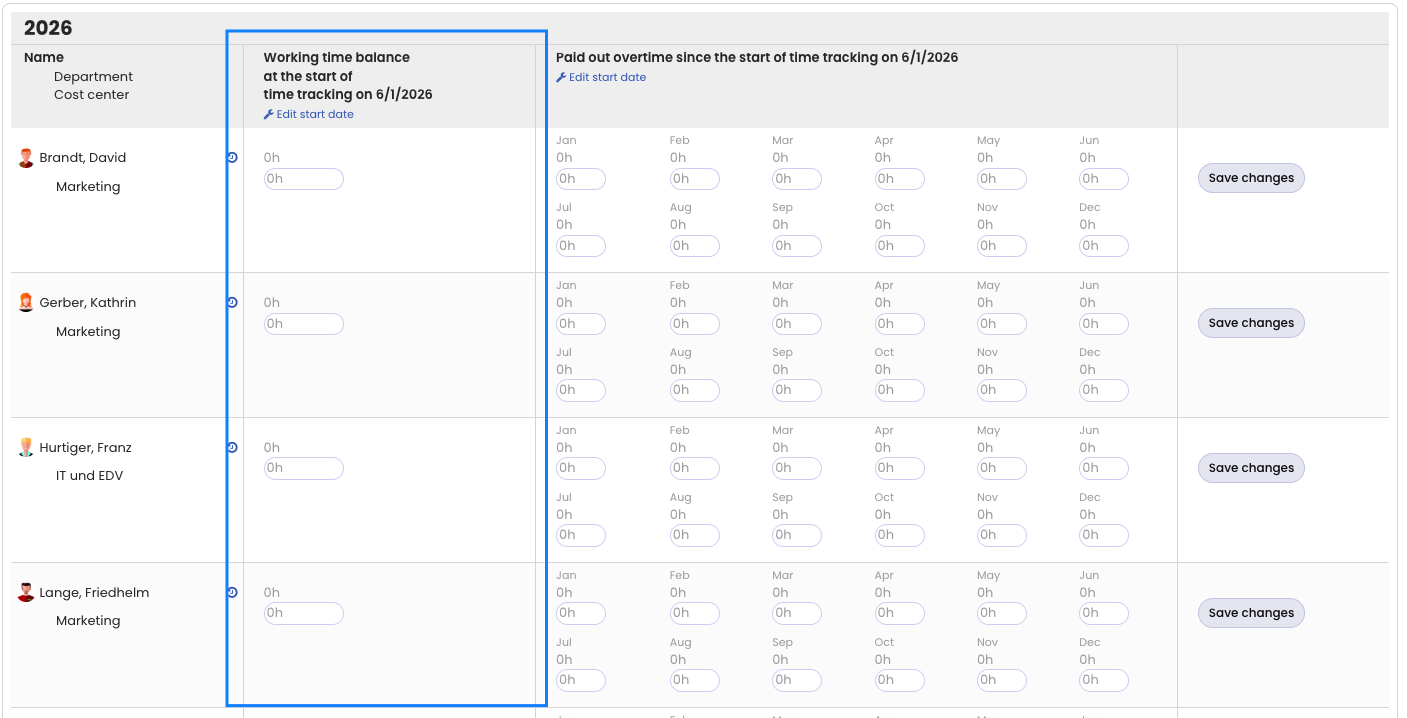
You can set, for each employee, the overtime balance they start with at the beginning of time tracking (= working time balance at the start of time tracking).
If, for example, someone had 42 hours of overtime at the start of time tracking, but only 10 hours are entered as the starting balance in Timebutler, Timebutler does not display the balance correctly. Check and correct the working time balance at the start of time tracking as follows:
Log in to Timebutler as an admin and click Settings at the bottom left, then Working time balance below it. If necessary, use the buttons above the list to switch to the calendar year in which you started time tracking. Check the overtime balances in the Working time balance at the start of time tracking column and correct them if necessary.
Absence does not reduce the target working time (for example parental leave, maternity leave, unpaid leave, etc.)
Timebutler automatically deducts vacation and sick leave in the working time account. For all other absence types, you can set whether they are counted in the working time account or not.
For example, if someone has entered 8 weeks of parental leave and the Parental leave absence type is set not to be counted in the working time account, Timebutler deducts overtime for those 8 weeks.
You can fix the problem by defining which absences should reduce the target working time in the working time account. Read here how to set that absences reduce the target working time.
Working time balance on 1/1 incorrect or does not match the working time balance on 12/31
Sometimes the working time balance on 1/1 shows a very large negative number, or it does not match the working time balance on 12/31 of the previous year. If the starting balance on 1/1 is too low, the overtime balance is also too low for the subsequent days in the year.
You can fix the problem with a few clicks. Read here how to proceed when the working time balance on 1/1 is incorrect.