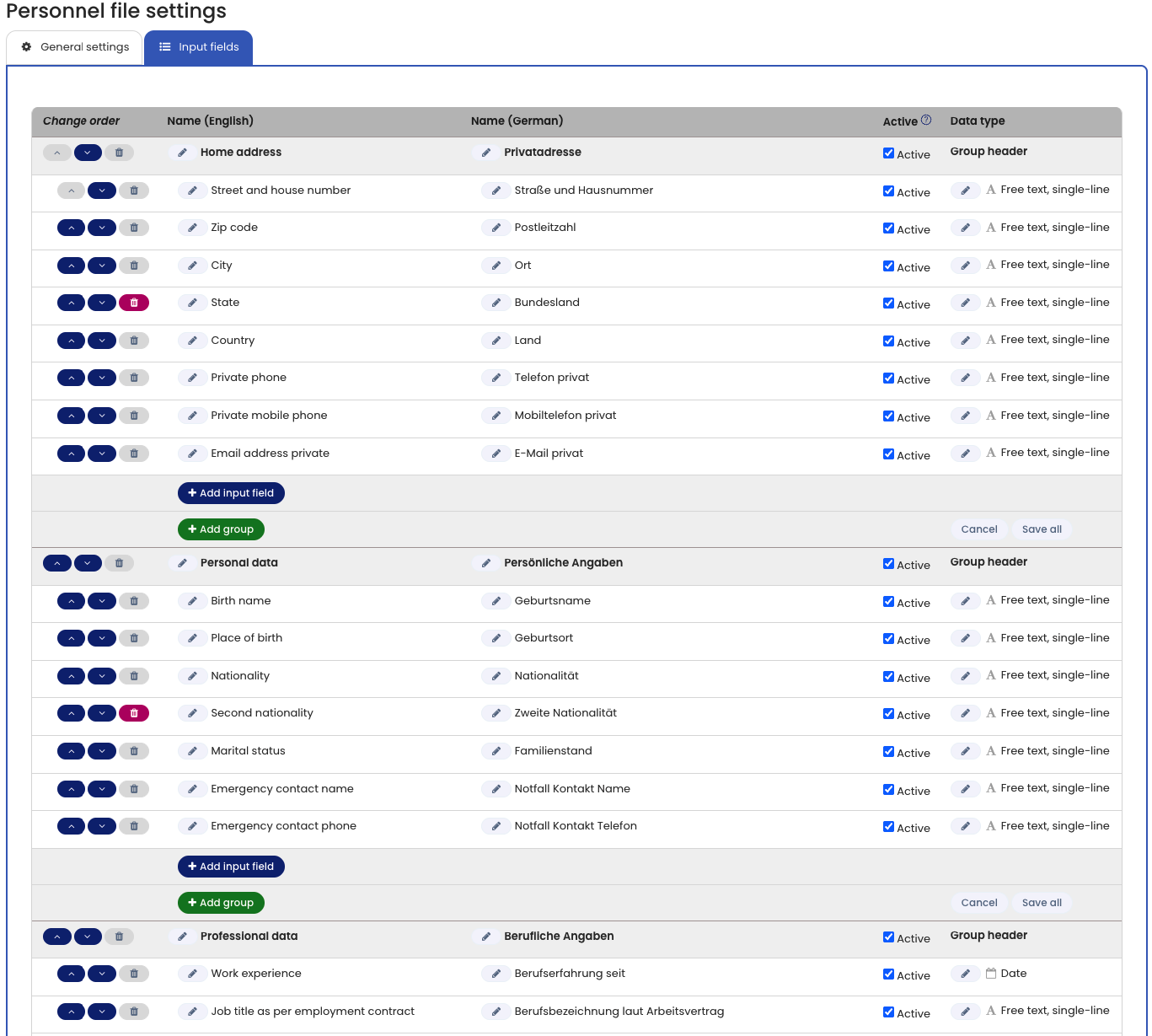
You decide how the Digital Personnel File should be structured for your company.
You can fully customize the layout and fields according to your requirements — including naming, grouping, and ordering.
Edit the Structure and Fields
- Log in to Timebutler as an Admin.
- Go to Settings > More… > Digital Personnel File.
- Open the Input Fields tab.
- Click Edit.
You will see a list of all groups and fields in the Digital Personnel File.
Available Customization Options
You can:
- Add new fields
- Delete existing fields (if no data has been entered yet)
- Deactivate fields (if data already exists)
- Create and delete groups with headings
- Move fields up or down, including into other groups
- Move entire groups (including their fields) up or down
- Define the field name (German and English)
- Select the data type for each field
Available data types include, for example:
- Text field
- Date
- Integer
- Yes/No selection
- Document/File upload
Apply Changes
After clicking Save, all views of the Digital Personnel File are automatically updated according to your configuration.