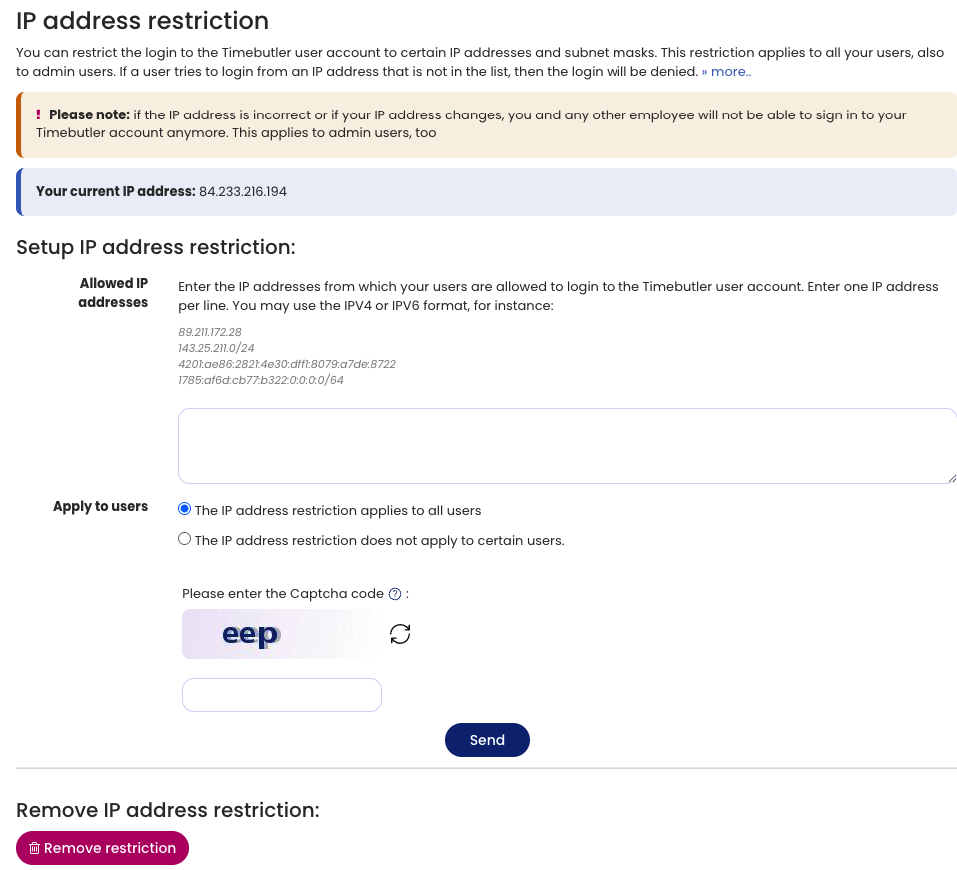
An admin can restrict access to Timebutler to specific IP addresses. For example, by allowing access only from company network IP addresses, you can ensure that employees can sign in to Timebutler only from within the company network. The restriction can also be applied to specific users only, while all other users retain unrestricted access.
Restrict access to specific IP addresses
Sign in to Timebutler as an admin and click Settings at the bottom left, then Security below it. Here you will find the Restrict to IP addresses section, which shows the current setting and allows you to change or remove it.
Restrict access by IP address for specific users only
In the IP address restriction settings (see above), there is also an Apply to users option. Here you can select which users the restriction applies to and which users are exempt.
Remove restriction
To remove the IP address restriction, sign in to Timebutler as an admin and click Settings at the bottom left, then Security below it. In the Restrict to IP addresses section, click the Remove restriction button.
Note: With an IP address restriction in place, employees cannot access Timebutler unless they are within the company network. If your only goal is to prevent employees from starting time tracking on the punch clock from home or via smartphone, there is an alternative: the Restrict to the time tracking terminal option ensures that employees can only clock in at the office or workplace where the time tracking terminal on a tablet is available.
Warning: If you enter an incorrect IP address, or if the IP address changes later, your users will no longer be able to sign in to Timebutler. If the restriction is applied to all users, this can lock everyone out of Timebutler.