Download time entries and absences by day
In the daily list view of the utilization report, you see the working time, breaks, target working time, absences, and other information for each calendar day. You can download the information there with a single click.
Read more about the utilization report here.
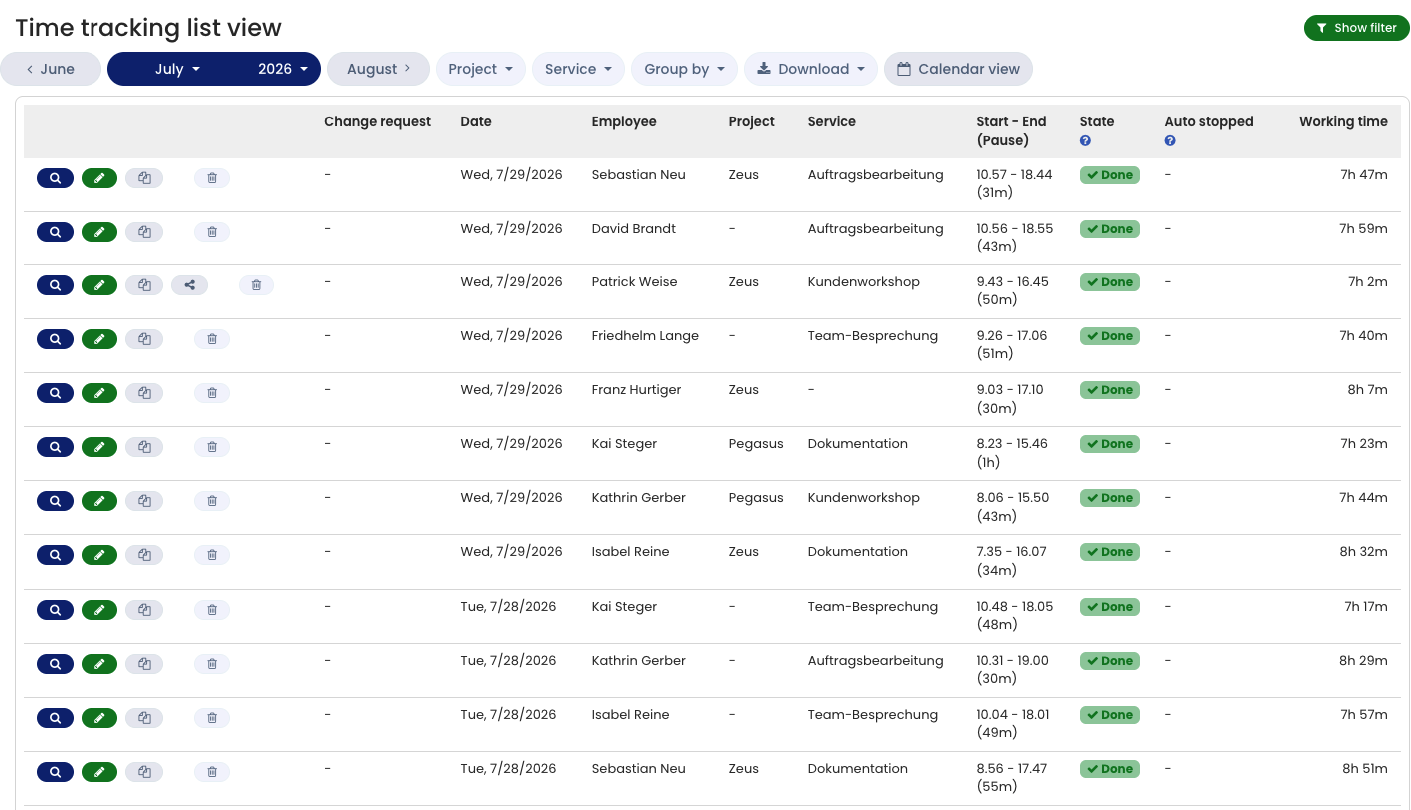
Download time entries
Admins and managers can download time entries as an Excel or CSV file.
Via the list view
Log in to Timebutler and click Employees > Time tracking > List view at the top left. If you want, filter the view with the green Show filters button at the top right. Then click the Download button.
Via the Download Center Read here how to download time entries via the Download Center.
Download working time accounts
In the working time account, you can display the working time for a period or the overtime balance as of a specific date. There is also a Download button there to download the information as an Excel file.
Read more about the working time account in the variants working time in a period and overtime balance as of a specific date.
View and download break start and end times
If recording of break times is enabled, the edit history of the time entry shows the detailed break times for a time entry. You can also retrieve the break times for multiple time entries.
Timebutler also logs when time entries are deleted. Read here how to download deleted time entries.