With the DATEV/LOGA export you hand your employees’ absences over from Timebutler directly to your payroll: as a DATEV ASCII file for your tax advisor or for DATEV Lohn und Gehalt and DATEV LODAS, or as a CSV import file for P&I LOGA.
Note:
Both integrations are new and currently in Early Access. We are initially enabling them for a limited number of companies so that we can guide the rollout closely and provide personal support if you have any questions. Simply reach out to us and we will activate the right integration for your account.
Setting up the DATEV/LOGA export
To use the export, the master data for the mapping has to be set up in advance.
1. Set the global DATEV settings
- Log in to Timebutler as an admin.
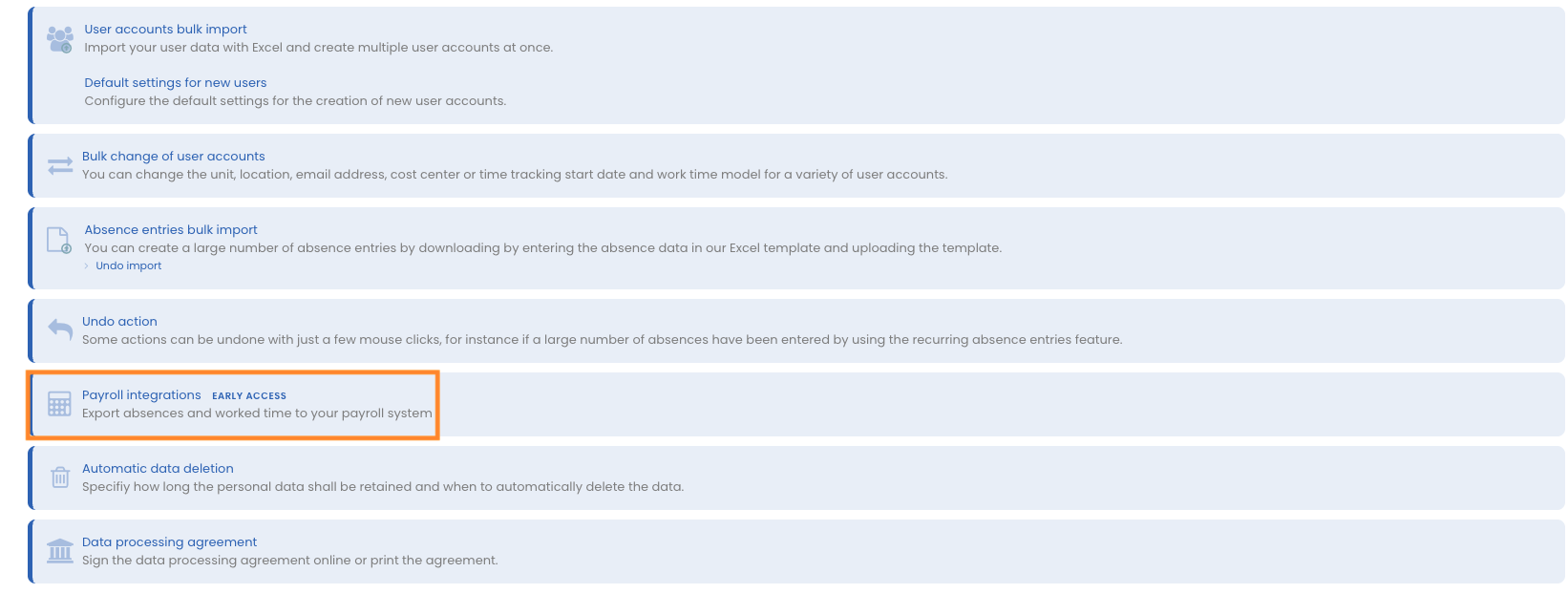
- Click on “Settings” in the bottom-left menu and then on “More settings”.
- Click on the option “Payroll integrations”.
- Enter your default DATEV consultant number (Beraternummer) and client number (Mandantennummer), then save your changes.
Note:
These numbers apply as the default for the entire team, but can be adjusted individually for single employees if needed.
2. Enter the employee numbers
To ensure that the data is mapped correctly in DATEV, an employee number must be stored for every employee to be exported:
- Click on “Employees” in the left menu and then on “Overview”. Select the person you want.
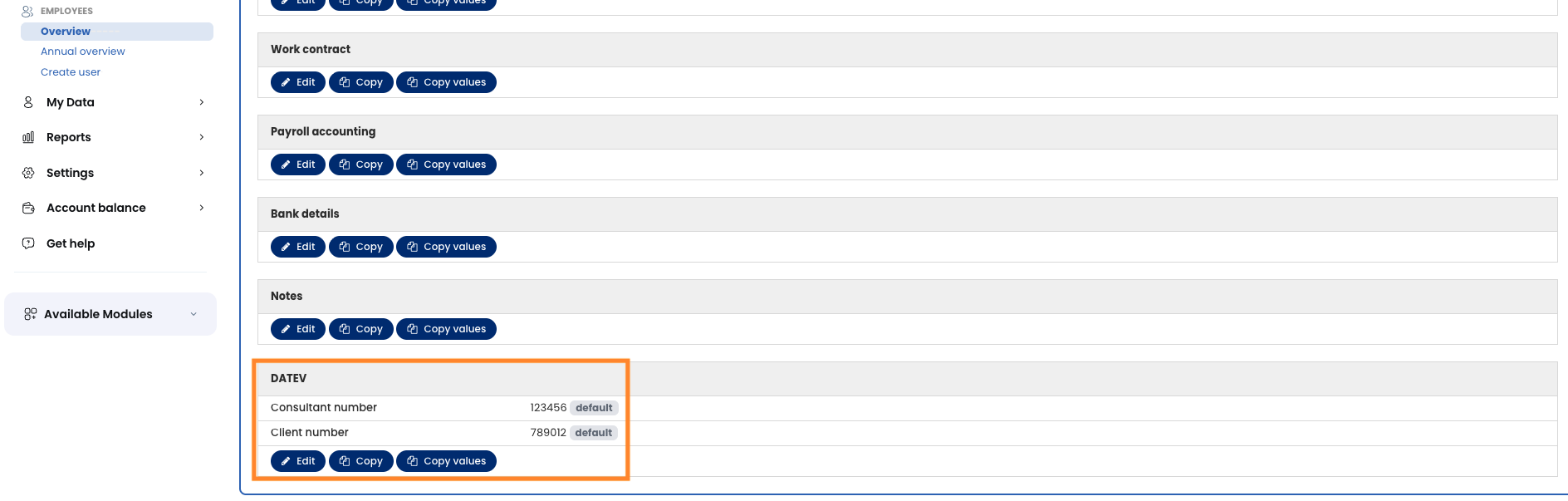
- Open the DATEV section in that person’s employee file.
- Enter the corresponding employee number. Optionally, you can also store a different consultant or client number for this person.
Exporting the DATEV/LOGA file
Once the settings and employee numbers are in place, you can run the export:
- Click on “Employees” in the left menu.
- Below “Absences”, click on “List view”.
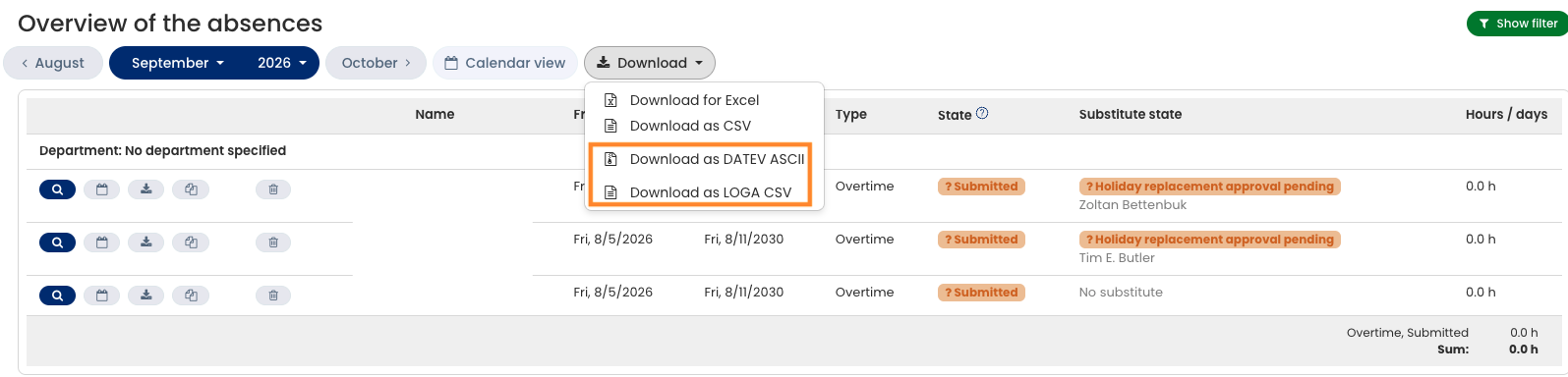
- Click the “Download” button at the top.
- Select the option “Download as DATEV ASCII” or “Download as LOGA CSV”.
A ZIP file is downloaded automatically. It contains:
- The ASCII file for the DATEV import.
- The matching INI file.
- A _warnings.txt file – it is only created if notices or errors occurred during the export, for example missing employee numbers.
Exporting via the download center
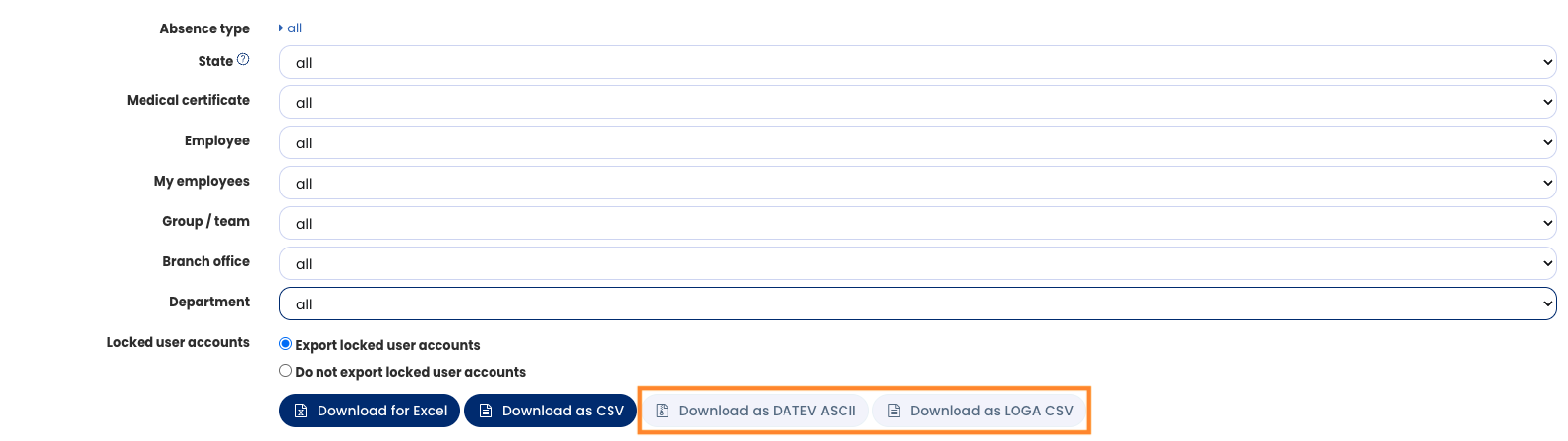
If you want to choose the period freely or filter by specific absence types, use the download center:
- Click on “Reports” in the left menu and then on “Download center”.
- Choose the “Absences” tab.
- Filter by the absence types you need and set the date range.
- Download the data via “Download as DATEV ASCII” or “Download as LOGA CSV”. For a free-form analysis, “Download for Excel” and “Download as CSV” are also available there.