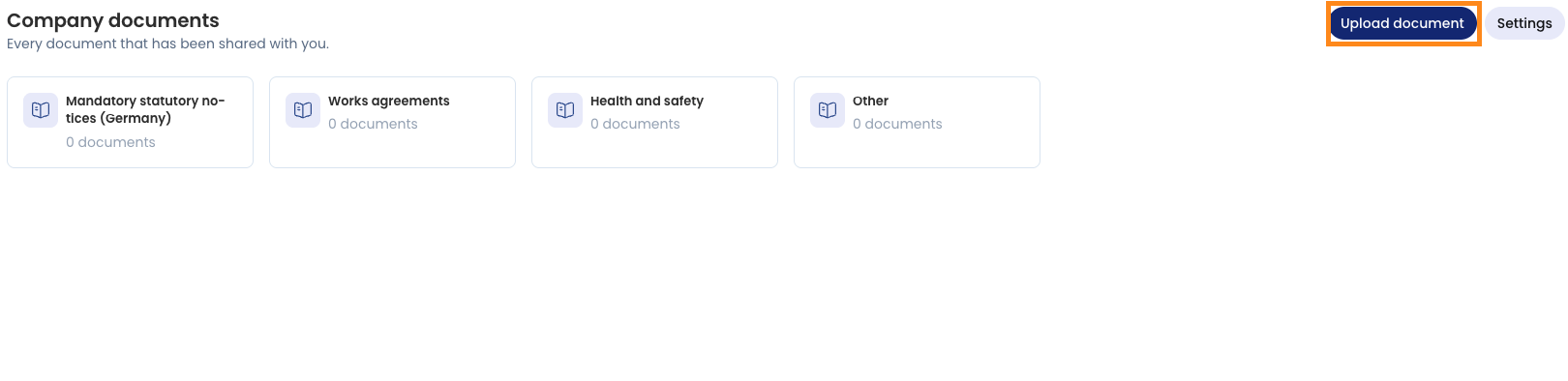
The Company Documents module allows you to centralize important files such as works agreements, health & safety policies, or mandatory statutory notices within Timebutler. This ensures employees always have easy access to all published documents.
Activating the module and managing settings
To enable or configure the module as an administrator:
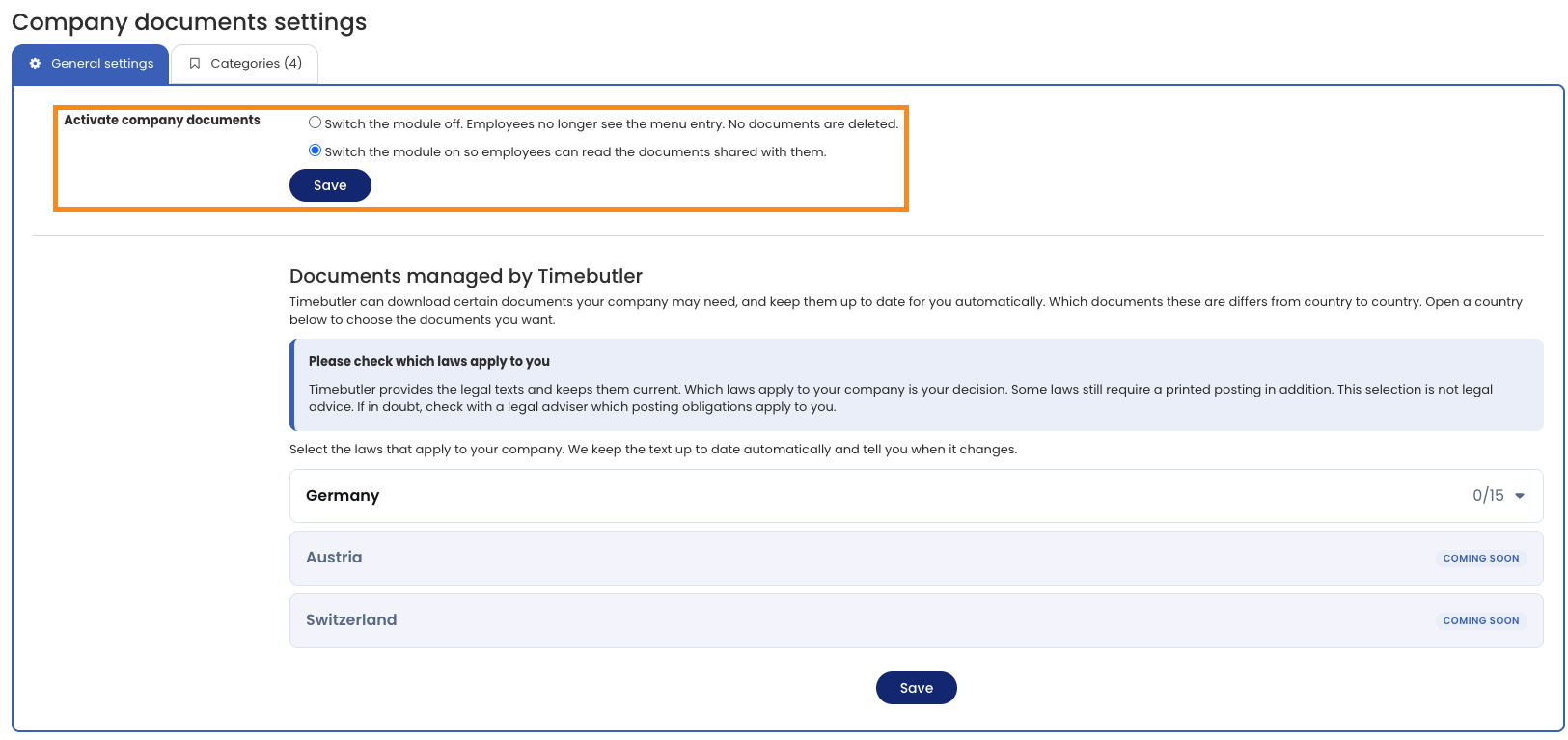
- Click on “Settings” on the left and then on “More settings”.
- Select the “Company documents” section.
- Select the option “Switch the module on so employees can read the documents shared with them.” and save your selection.
Managed documents by Timebutler
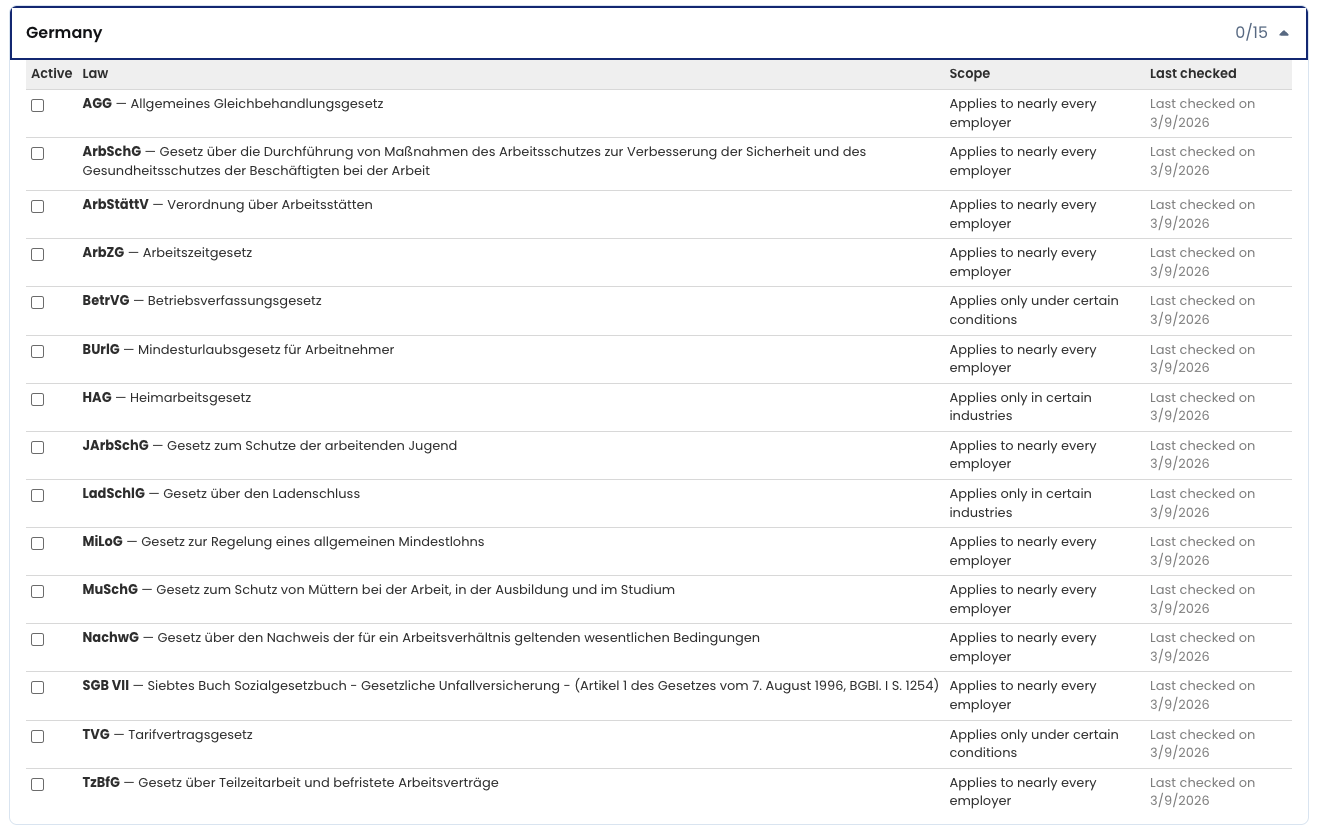
Timebutler can automatically provide official legal texts required for your jurisdiction and keep them up to date.
- Under General Settings, open the section for your respective country (e.g., Germany).
- Select the applicable laws for your company.
- Click Save.
Note: Timebutler keeps these legal texts updated automatically and notifies you of changes. Please independently verify which publication requirements apply to your organization, as this does not constitute legal advice.
Managing categories
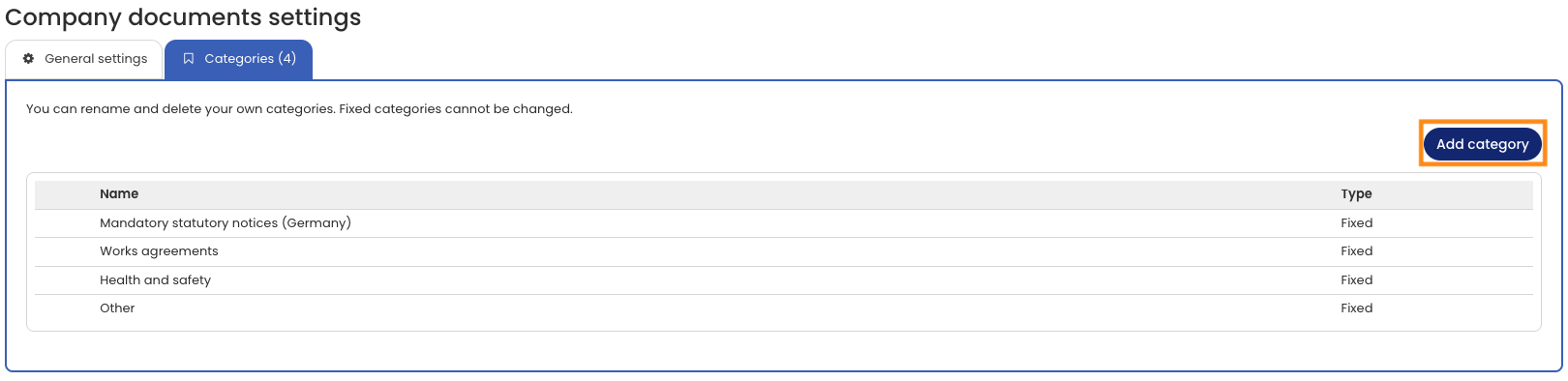
Documents are organized into categories (e.g., Works agreements, Occupational safety, Mandatory statutory laws). Default categories: System-defined categories that cannot be renamed or deleted. Adding custom categories:
- Go to “Settings” > “More settings” > “Company documents” and select the “Categories” tab.
- Click on the “Add category” button in the top right corner.
- Enter the title in German and English.
- Click on “Save”.
Uploading and viewing documents
To publish a new document for your employees:
- Click Company documents in the main menu on the left.
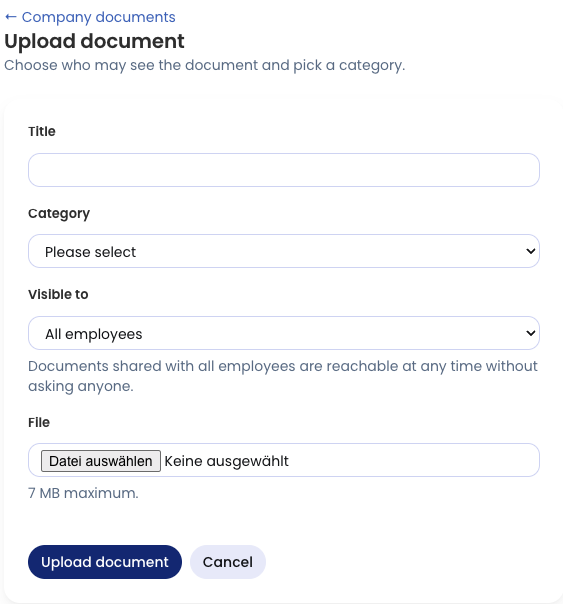
- Click the Upload document button in the top right corner.
- Select the target category and upload your file.
New or unread documents will be highlighted for employees with an unread badge (e.g., “2 unread”).